Too Many Emails? How to Fix Email Overload (2026)
By Clarnix, Team ·
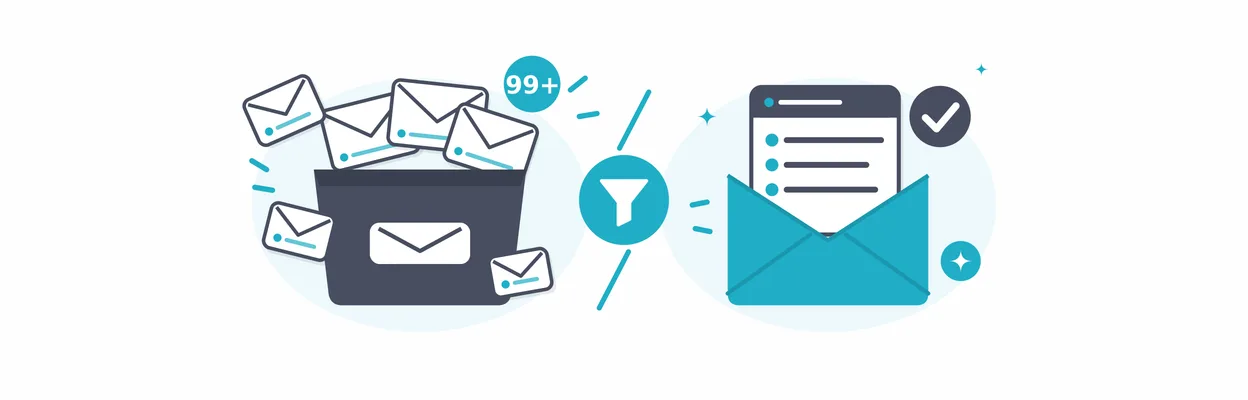
Quick answer: To fix email overload, cut volume at the source first: unsubscribe, switch app notifications to in-app, and leave CC chains you do not need. Then process what remains in two or three fixed blocks a day, triaging each email by the action it needs, with a safety net that tells you when something urgent arrives.
You open your inbox and there are 200 unread messages. Newsletters, app notifications, a reply-all chain you were copied on and, somewhere in the middle, the three emails that actually matter. If you feel overwhelmed by email, you are not bad at your job. You have a volume problem, and volume problems have structural fixes.
What is email overload?
Email overload is when more email arrives than you can read, decide on and answer in thetime you have. It is a maths problem before it is a feeling: if 117 emails each need two minutes, that is almost four hours, before any reply that requires real thought.
It is related to email fatigue, the tiredness that comes from checking your inbox compulsively, but it is not the same. Fatigue responds to habits, like checking less. Overload needs a system, because checking less without one only turns too many emails into missed deadlines.
The usual signs:
Important messages get buried and you find them days late.
Opening your inbox makes you anxious.
Email crowds out the work you are actually paid to do.
You archive everything on Friday and the pile is back by Monday.
How many emails is too many?
Email is too many when it decides your day instead of you. If you check it more than once an hour, reply to the newest message first, or lose track of what still needs an answer, you receive too many emails for the way you currently handle them. There is no universal number.
For reference, Microsoft's 2025 Work Trend Index found that the average employee receives 117 emails and 153 Teams messages a day, and that 40% check email before 6 a.m. But 40 emails can be too many for someone with three hours of meetings, and 200 can be fine for someone whose job is the inbox.
Every check also has a cost. Research by Gloria Mark at UC Irvine found that it takes around 23 minutes to fully refocus after an interruption. Ten checks a day can quietly eat most of a morning.
Where too many emails come from: 4 sources
Too many emails almost always come from four sources: newsletters and promotions, app notifications, CC and reply-all chains, and real work. The first three are noise; only the fourth needs a decision from you. Before changing anything, scroll through yesterday's inbox and count which source each email came from.
Source | What it looks like | Best fix |
|---|---|---|
Newsletters and promotions | Weekly updates, offers, "we've changed our terms" | Unsubscribe, or route out of the inbox |
App notifications | Calendar, CRM, project tools, GitHub, invoicing | Change settings inside each app, then filter |
CC and reply-all chains | Threads where you are copied "for visibility" | Team norms, mute threads |
Real work | Clients, colleagues and suppliers asking for something | Batch, triage, delegate |
If your inbox feels unmanageable, it is almost always because the noise sits on top of the signal and hides it. Fix the noise first and the real work becomes visible again.
Why am I suddenly getting so many emails?
A sudden jump usually has one of three causes: a new tool started sending notifications, you signed up somewhere that shares your address, or you joined a busy project or mailing list. Check which senders are new this week. If the jump is mostly spam from unknown senders, it is a security issue rather than overload: Kaspersky counted 44.99% of all email sent in 2025 as spam. Report it as spam so your filters learn.
How to stop getting so many emails
To stop getting so many emails, unsubscribe from anything you have not opened in a month, switch app notifications to in-app only, leave CC chains you do not need and use a separate address for sign-ups. Each step takes minutes and pays back every day.
Unsubscribe in one sitting. Search your inbox for "unsubscribe", sort by sender and work down the list. Gmail and Outlook show an unsubscribe link at the top of many bulk emails. If you still want a newsletter but not in your inbox, route it to a folder instead.
Turn notifications down inside each app, not in your inbox. Your calendar, CRM and project tools let you choose which events send an email. Switch most of them to in-app only or a daily summary from that tool. One setting there removes hundreds of emails a month.
Leave CC chains you do not need. Ask to be removed from FYI-only distribution lists and mute threads where your input is not needed.
Use a separate address for sign-ups. An alias for shops, webinars and trials keeps marketing email out of your work inbox from day one.
If you want a tool to do part of this for you, our comparison of SaneBox vs Clarnix shows two different ways of moving low-value email out of your inbox automatically.
How to manage email overload: the 5 D's and 5 habits
To manage email overload, decide once on every email using the 5 D's (delete, do, delegate, defer, designate), and support that decision with five habits: fixed email blocks, no notifications, filters and rules, response-time expectations and templates. The 5 D's handle each message; the habits keep the volume from coming back.
The 5 D's of email management
The 5 D's are a decision rule: every email you open gets exactly one of five outcomes, so nothing is read twice and left for later. Versions vary slightly between authors; this is the one we find most practical.
D | When to use it | What you do |
|---|---|---|
Delete | Noise, or information you will never need again | Delete or archive without replying |
Do | It takes under two minutes | Reply or act now, then archive |
Delegate | Someone else is better placed to handle it | Forward with clear context, note the follow-up |
Defer | It needs more than two minutes | Turn it into a task with a date, then archive |
Designate | Reference material you may need later | File it in one folder or label, not twenty |
The point is the first pass: decide and move on. An email that stays in the inbox after you have read it costs you a second reading later.
1. Batch email into two or three blocks a day
Pick fixed times, for example 9:00, 13:00 and 17:00, and treat email as a task you do then, not a stream you watch all day. Close the tab in between. Process from oldest to newest, so the latest thread does not pull you in before older requests get an answer.
2. Turn off email notifications
Disable badges, banners and sounds on your phone and desktop. If something is truly urgent, people will call or message you. Notifications are what turn 117 emails into 117 interruptions.
3. Use filters and rules in Gmail and Outlook
Gmail filters and Outlook rules move email out of your inbox by sender, subject or keyword, so set up a few for your noise sources: newsletters to "Read later", tool notifications to "Notifications", receipts to "Receipts". Their limit is that they only match what you can describe in advance: they cannot tell an urgent email from a routine one sent by the same person.
4. Set response-time expectations
Much of the pressure of an unread count comes from assuming everyone wants an answer within the hour. Say how you work: a line in your signature such as "I check email twice a day and reply within one working day" changes what people expect. Move quick internal questions to chat and keep email for things that need a record.
5. Use templates for repeat answers
If you answer the same question every week, save it as a template in Gmail or Outlook and edit only the part that changes. Combined with the two-minute rule, templates turn most "Do" emails into one-minute tasks.
Too many inboxes: email overload across several accounts
If you manage several email accounts, overload multiplies: every inbox has its own noise, its own filters and its own unread count, and you check each one "just in case". The fix is to triage all accounts with the same rules and read one combined summary instead of opening each inbox in turn.
This is common in agencies and consultancies, where one account manager may handle a personal address, a shared client address and a project inbox. Filters do not travel between Gmail and Outlook, so the same rule has to be built twice, and something always slips through in the account you checked least.
Three things help:
One set of rules for every account. Write each rule once and apply it everywhere, instead of rebuilding it in each provider.
One place to see what needs action. A single list across accounts beats five unread counters.
Fewer checks, not faster checks. If each inbox takes two minutes and you have four, every "quick look" is eight minutes.
Clarnix was built for this case. You connect Gmail, Outlook, iCloud or any IMAP account, and the Pro plan covers five accounts in one briefing. See plans and pricing.
The safety net for checking email less
Checking email less only works when something else is watching your inbox: a colleague covering a shared address, strict filters with a VIP list, or a triage tool that tells you at set times what needs you. Without that safety net, people keep checking "just in case" and the overload comes back.
This is what an AI triage tool such as Clarnix does. It reads each incoming email, applies rules you write in your own words first, separates what needs action from FYI and noise, and labels, archives or stars email accordingly. Then it sends you a briefing at the times you choose: once a day on Starter, up to three times a day on Pro and Team Pro. It arrives by email or push on every plan, and in Microsoft Teams, Slack, Telegram or Google Chat on Pro, Team and Team Pro. You keep replying from the email app you already use, and anything filed away is one click from your inbox in the auto-handled list.
On our own inboxes, which receive 75 to 275 emails a day, Clarnix saves between 2½ and 5 hours a week.
If you hand your email to any tool, check how it treats your data. Clarnix is built in the EU and processes email in memory: email bodies are never stored, only metadata and the AI-written summaries, encrypted at rest.
Tools that reduce email overload in the workplace
Four types of tools reduce email overload at work: built-in filters and rules, triage and briefing tools such as Clarnix and SaneBox, smart email clients such as Spark and Superhuman, and shared inboxes such as Missive, Front and Gmelius. Which one helps depends on where your overload comes from and whether you handle email alone or as a team.
Type | Examples | Best for | Limit |
|---|---|---|---|
Built-in filters and rules | Gmail filters, Outlook rules | Predictable noise from known senders | Only match what you describe in advance |
Triage and briefing tools | Clarnix, SaneBox | High volume, one or several accounts, people who want to check less | You review a summary instead of the raw inbox |
Smart email clients | Spark, Superhuman | A faster inbox to process email in | You still process every email; usually means switching app |
Shared inboxes | Missive, Front, Gmelius | Teams answering support@ or sales@ together | Built for team queues, not personal overload |
If you are weighing a new email client, our guide to Superhuman alternatives compares the main options. If you would rather keep your current app and change only how email reaches you, a triage tool is the lighter change, and it can deliver your briefing inside Microsoft Teams or Slack, where many teams already spend the day.
Email overload at work: team rules that cut volume
Teams reduce email overload by agreeing how To and CC are used, moving quick questions to chat, writing subject lines that say what is needed and sharing rules instead of advice. Email overload in the workplace is partly a team habit, so part of the fix has to be shared:
To means "you need to act"; CC means "no reply expected". It cuts reply-all chains quickly.
Quick questions go to chat. Keep email for clients, suppliers and decisions that need a record.
Subject lines say what is needed. "Decision needed by Friday: Q4 budget" can be triaged without opening it.
Rules are shared, not repeated. If everyone archives the same supplier notifications, set the rule once for the whole team.
With Clarnix for teams, owners and admins share a rule with every member, and each person gets their own briefing in the Microsoft Teams or Slack channel the team already uses, on one subscription with a seat per person.
FAQ
How do I stop getting too many emails?
Cut volume at the source: unsubscribe from newsletters you do not read, switch app notifications to in-app or daily summaries, and leave CC chains you do not need. Then filter what is left with rules or a triage tool, so only emails that need action stay in your inbox.
How do I clean out an inbox with thousands of emails?
Do not read them. In Gmail, search for everything older than a set date (for example older_than:30d), select all conversations that match the search and archive them; anything important can still be found by search. In Outlook, use the Sweep or Clean Up tools to clear whole senders and threads. Then unsubscribe from the biggest senders so the backlog does not return.
What are the five D's of email management?
The five D's are delete, do, delegate, defer and designate: five possible decisions for every email you open, so each message is handled once. Delete noise, do anything under two minutes, delegate what others should handle, defer longer tasks to your calendar and file reference material in one place.
Is inbox zero realistic?
As a daily target for personal email, yes, if you archive freely and triage by action. As a permanent state, no: email keeps arriving. What matters is that every email needing action is visible and nothing urgent is buried, not that the counter reads zero.
Conclusion
Too many emails is a structural problem, so it needs a structural fix. Find which of the four sources fills your inbox, cut the noise at the source, decide once on everything else with the 5 D's, and add a safety net so you can check less without missing what matters.
If you want that safety net across all your accounts without changing email app, Clarnix triages your inbox and sends you a short briefing in the channel you already use. Start your 14-day free trial of Clarnix, no credit card required.