Clarnix help · Security
Set up two-factor authentication for Clarnix
Adding a second factor to your Clarnix account, and how your email account credentials are protected.

Setting up an authenticator
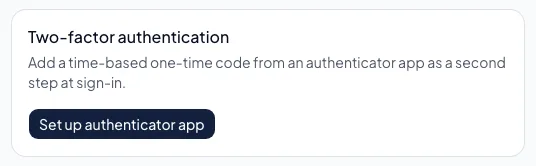
- Choose Set up authenticator. Clarnix shows a QR code.
- Scan it with your authenticator app. Any standard one will do. If you cannot scan, the same secret is shown as text to type in.
- Enter the six-digit code the app shows you to confirm it works.
Once verified, this page shows the factor as active. If a code is refused, check that your phone’s clock is correct. These codes are time-based and a phone a minute out of step will generate codes that are rejected.
Partners must have a second factor enrolled before the partner portal will show them anything. Arriving here from a partner link is that requirement, not an error.
How your data is protected
- The body of your email is never written to our database. It is held in memory while it is being classified and then discarded.
- What is stored is metadata (sender, recipients, subject line, timestamps, attachment names) along with the AI’s verdict and its summary. Subject lines are stored, and they appear in briefings and in Email activity.
- Email account passwords and access tokens are encrypted at rest with a key derived for your account alone.
- Every connection is encrypted in transit, and the database is hosted in the EU.
- Database-level rules stop any account from reading another account’s data.
- Your email content is not used to train any AI model.