How to create rules in Gmail: step by step, with 7 rules to copy
By Clarnix, Team ·
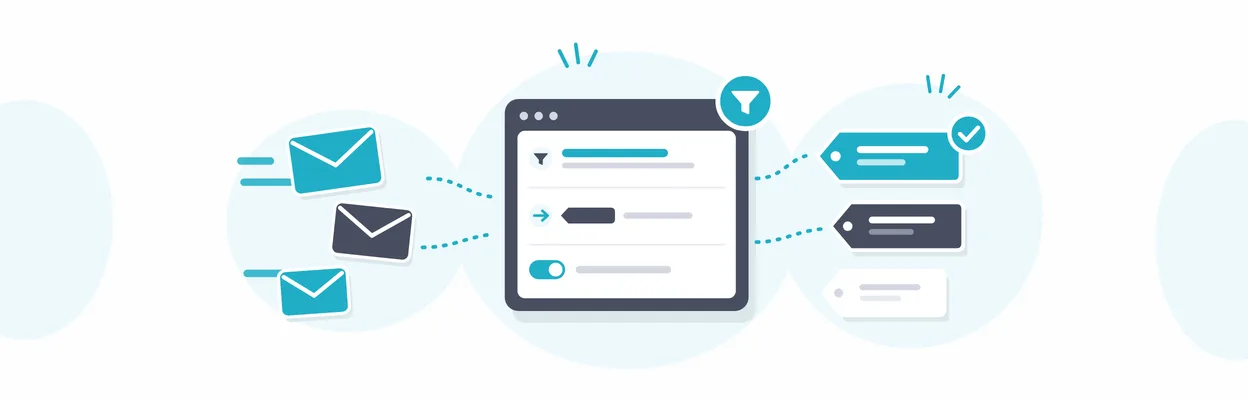
Quick answer: Gmail calls its rules filters. On a computer, click Show search options at the right of the Gmail search bar, enter your conditions (sender, subject, words), click Create filter, tick the actions you want (apply a label, skip the inbox, mark as read, forward and so on), then click Create filter again. The rule runs on every new matching email from then on.
If you've gone hunting through Gmail's settings for a "Rules" menu, that's why you couldn't find one. This guide covers the three ways to create a Gmail rule, every condition and action, seven rules you can copy as they are, how to fix one that isn't working, and what to do when filters stop being enough.
Gmail rules are called filters
Outlook has "rules"; Gmail has "filters". They do the same job: when an email matches the conditions you set, Gmail takes the actions you chose, automatically, whether or not you have Gmail open.
Every filter has two halves:
Conditions: who sent it, who it was sent to, what's in the subject, which words it contains, whether it has an attachment, how big it is.
Actions: what Gmail does with every email that matches.
Labels are the other half of the system. A label is where an email ends up (Gmail's version of a folder); a filter is the rule that decides which emails go there.
How to create a rule in Gmail
There are three ways in, and they all lead to the same form. Google documents creating filters on a computer, so do this in your browser.
Method 1: from the search bar
Best when you're building a rule from scratch.
Open Gmail in your browser.
Click Show search options, the slider icon on the right of the search bar.
Fill in your conditions, for example a sender's address in From.
Click Search first. The results are exactly the emails your rule will catch, so this is your chance to spot anything that shouldn't be there.
Open the search options again and click Create filter.
Tick the actions you want.
Click Create filter.
Method 2: from an email you already have
The fastest route when the offending email is right in front of you, because Gmail fills in the sender for you.
Tick the checkbox next to the email.
Click More (the three vertical dots).
Choose Filter messages like these.
Check the pre-filled conditions and add any others.
Click Create filter, choose your actions and save.
Method 3: from Gmail settings
Useful when you're tidying up your rules and want to add one while you're there.
Click the gear icon, then See all settings.
Open the Filters and Blocked Addresses tab.
Click Create a new filter at the bottom of the list.
Apply the rule to emails you already have
A new filter only acts on emails that arrive after you create it, unless you tell it otherwise. On the actions screen, tick Also apply filter to matching conversations to sort your existing inbox in one go.
The exception is forwarding: according to Google, a filter that forwards email only applies to new messages.
Every condition and action, explained
Conditions
Condition | What it matches | Example |
|---|---|---|
From | A sender, or a whole domain | billing@vendor.com or vendor.com |
To | Emails sent to a specific address | Your alias you+receipts@gmail.com |
Subject | Words in the subject line | invoice, order confirmed |
Has the words | Words anywhere in the email; accepts search operators | receipt OR invoice |
Doesn't have | Leaves out emails containing certain words | urgent |
Size | Emails larger or smaller than a size | Larger than 10 MB |
Has attachment | Only emails with a file attached | Contracts, statements |
You can combine as many conditions as you like in one filter. More conditions make a rule more precise, and also make it easier for an email to slip past.
Actions
Action | What it does |
|---|---|
Skip the Inbox (Archive it) | Keeps the email out of your inbox; it stays searchable and under its label |
Mark as read | Stops it adding to your unread count |
Star it | Adds a star so it stands out |
Apply the label | Files it under a label, Gmail's version of a folder |
Forward it to | Sends a copy to another address you've already verified in Gmail's forwarding settings |
Delete it | Sends it to the Bin |
Never send it to Spam | Protects a sender Gmail keeps misjudging |
Always / Never mark it as important | Overrides Gmail's importance markers |
Categorize as | Sends it to a tab such as Primary, Promotions or Updates |
To "move emails to a folder automatically", combine two actions: Apply the label plus Skip the Inbox. The email goes straight to that label and never appears in your inbox.
7 Gmail rules worth setting up today
Each one tells you which field to fill in and which boxes to tick.
1. Receipts and invoices in one place
Has the words: invoice OR receipt has:attachment
Actions: Apply the label "Finance", Star it.
Why star rather than archive: you still see them arrive, and at month end they're all under one label for your accountant.
2. Newsletters out of the way until you want them
Has the words: unsubscribe OR "view in browser"
Actions: Apply the label "Reading", Skip the Inbox.
Check that label for the first week. Your bank, your payroll tool and plenty of other services you care about also include an unsubscribe link.
3. One label per client
From: clientdomain.com
Actions: Apply the label "Clients/Client name", Never send it to Spam.
4. Tool notifications, read and filed
From: the notification address of your monitoring tool, CRM or online shop
Actions: Mark as read, Apply the label "Notifications", Skip the Inbox.
5. Emails where you're only copied
Has the words: cc:you@company.com -to:you@company.com
Actions: Apply the label "CC'd".
Don't archive these straight away. Give it a week to make sure nothing that needs your reply lands there.
6. Large attachments you'll want to clear later
Size: larger than 10 MB
Actions: Apply the label "Large files".
Handy when your Google storage starts filling up.
7. A sender you never want to see again
From: the exact address
Actions: Delete it.
For harassment or persistent spam, Gmail's block sender option is the more direct tool.
Gmail search operators that make rules sharper
The Has the words field understands the same search operators as the search bar. A handful cover most rules:
Operator | What it does | Example |
|---|---|---|
OR | Matches either term | invoice OR receipt |
- | Excludes a term or sender | -from:boss@company.com |
" " | Matches an exact phrase | "order confirmed" |
has:attachment | Only emails with attachments | has:attachment filename:pdf |
larger: | Emails above a size | larger:5M |
list: | Emails sent through a mailing list | list:news@brand.com |
cc: | Emails where an address is copied | cc:you@company.com |
Avoid operators that look for a folder, such as in:. Incoming email isn't in a folder yet, so those rules won't match it.
How to edit, delete, export and import Gmail rules
Every rule lives on one page: gear icon, See all settings, Filters and Blocked Addresses.
Edit: click edit next to a filter, change the conditions, click Continue, adjust the actions and click Update filter.
Delete: click delete next to the filter and confirm. Emails it has already processed stay where they are.
Export: tick the filters you want and click Export at the bottom. Gmail downloads an .xml file.
Import: in another account, click Import filters, choose the file and click Create filters.
Exporting is the quickest way to set up a new work account with the rules you rely on, but it's a one-off copy. Change a rule in one account and the other won't follow.
Can you create Gmail rules on iPhone or Android?
Google's instructions for creating filters are for a computer, so set your rules up in a browser on your laptop or desktop. Once saved, they apply to your whole account and keep working whether you read your email on your phone, a tablet or the web.
Why your Gmail rule isn't working
Most "broken" filters come down to one of these:
The conditions don't match the real email. Run them as a search. If the email doesn't show up in the results, the filter won't catch it either. Senders often use a different address or a subdomain from the one you expect.
The email arrived before the rule existed. Edit the filter and tick Also apply filter to matching conversations.
Two rules are fighting. When several filters match one email, Gmail applies all of them, so one rule can archive what another one stars.
The operator doesn't work on incoming mail, such as in:.
It's a reply in a thread. Google notes that a reply to a filtered email is only filtered if it matches the same criteria.
Where Gmail rules fall short
Filters are free, dependable and worth setting up. They also hit a ceiling once your email volume grows:
They match words, not meaning. A rule on "invoice" catches your supplier's invoice, and also the newsletter about "five ways to get invoices paid faster". A client who writes "could you send over what we owe?" never uses the word at all.
Every rule is yours to maintain. New supplier, new sender address, new subject line: back to settings.
They only work in that Gmail account. If you also have an Outlook account for work or an IMAP address on your own domain, each one has its own rules, its own interface and its own vocabulary.
They sort, but don't tell you what matters. At the end of the day you still open every label to find out whether anything needs you.
Plain-language rules across Gmail, Outlook and IMAP
That's the gap Clarnix fills. Instead of fields and operators, you write the rule in plain English, something like "archive anything from our monitoring tool unless it says critical". Clarnix shows you how it understood the rule before you save it, and tells you if it can't do what you asked rather than approximating.
How that differs from a Gmail filter:
One set of rules for every email account. Connect Gmail, Outlook or IMAP and choose which accounts each rule applies to.
AI handles what your rules don't. The first matching rule wins; everything else goes through AI triage, which sorts it into Action required, Ongoing issues, FYI and Auto-handled.
A briefing comes to you in the channel you already check, so you don't have to open each label. See how briefings work and every delivery channel.
Built and based in Europe. Email is processed in memory and the email body is never stored. More on our trust and security page.
What Clarnix doesn't do: forward email. For that, the Gmail filter above is the right tool, and the two work side by side.
Clarnix starts at €9 a month billed annually (excluding VAT), and the Starter plan includes 10 rules. Compare plans on our pricing page. Weighing up other tools? We compare them in SaneBox vs Clarnix and Superhuman alternatives.
Frequently asked questions
Does Gmail have rules like Outlook?
Yes. Gmail's equivalent of Outlook rules is called filters. You create them from Show search options in the search bar, or from See all settings > Filters and Blocked Addresses.
Can a Gmail rule move emails to a folder?
Gmail uses labels instead of folders. Create a filter, tick Apply the label and Skip the Inbox, and matching emails go straight to that label.
Can Gmail rules forward emails automatically?
Yes. Add and verify the destination address in Gmail's forwarding settings first, then create a filter with Forward it to. It only forwards emails that arrive after the filter is created.
Do Gmail rules apply to old emails?
Only if you ask them to. Tick Also apply filter to matching conversations when you create or edit the filter. Forwarding is the exception and only applies to new emails.
Can I create a Gmail rule that auto-replies?
Not with a filter's standard actions. For a general automatic reply, use Gmail's vacation responder.
What's the difference between Gmail filters and labels?
A label is where an email is filed. A filter is the rule that decides which emails get which label, and what else happens to them.
Start with two rules
Creating rules in Gmail takes a couple of minutes: conditions, actions, Create filter. Start with receipts and newsletters, check for a week that nothing important slips through, then add rules as patterns appear. When you're juggling several email accounts, or keywords no longer tell you what matters, try writing your rules in plain English instead.
Start your 14-day free trial of Clarnix, no credit card required
Gmail steps checked against Google's Gmail Help on 14 October 2026. Gmail's interface may change.